Optional analytics

Allow cookies for visit statistics, heatmaps, and session recordings? You can use the site without them. Privacy policy

Trackable QR Codes
Google ReviewsFree and trackable

Google Review QR Code Generator

Turn happy customers into 5-star reviews. One scan opens your Google review form, and you can see how many people scanned each code.

01

Start with a link

Where should your QR code go?

QR code type

Search for your business, or paste your review link or Place ID. How to find it

No account required
Change the link later
Track every scan

Preview your QR code

Checking scannability...
The basics

What is a Google review QR code?

A Google review QR code is a QR code that opens the review form for your business on Google. A customer points their phone camera at it, taps the link and lands directly on the star rating screen. There is no need to search for your business on Google Maps, scroll through results or find the reviews tab.

Every code you create here is dynamic. It holds a short link that we redirect to your review page, so you can change the destination without reprinting and see how many people scan it. It works the same way as our trackable QR codes for websites, menus and flyers.

Use it anywhere customers pay, wait or say thank you. Most people are happy to leave a review when it takes ten seconds, and a printed code makes it that easy. Need a code for something else? Browse every type in our free QR code generator.

  • Opens your review form in one scan, on iPhone and Android
  • No app, account or Google search needed for customers
  • Change the review link later without reprinting
  • Count scans by day, country and device
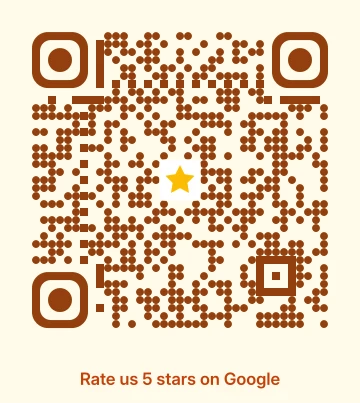
Example Google review QR code with a gold star and a Review us on Google call to action
How it works

How to create a Google review QR code

It takes about a minute, and all you need is your business name.

  1. Find your business

    Click Search in the generator and type your business name and city. Pick your listing and the review link is filled in for you. You can also paste a review link or Place ID.

  2. Choose a template

    Start with one of the review templates, then change the colors, add your logo or edit the call to action. Every design is scan-tested before you can save it.

  3. Create and download

    Click Create QR code and download it as PNG or SVG for print and screens. Sign in for free to keep the code in your dashboard.

  4. Print it and track scans

    Put the code on tables, receipts and counters. Check scans in your dashboard and update the link at any time.

Where to use it

Ask for reviews at the right moment

The best time to ask is right after a good experience. Put your code where customers are when they feel it.

01

Tables and table tents

Restaurants and cafés get reviews while guests wait for the bill.

02

Receipts and invoices

Print the code at the bottom of every receipt or attach it to an invoice.

03

Counters and checkouts

A small stand next to the card reader reaches every paying customer.

04

Packaging and thank-you cards

Online orders can ask for a review the moment the box is opened.

05

After a service visit

Salons, clinics and contractors can hand out a card when the job is done.

06

Emails and signatures

Add the code image to follow-up emails, newsletters or your email signature.

Templates

Ready-made Google review templates

Each template adds a tested color scheme, a star icon and a call to action. You can change everything in the editor.

  • Google Colors Google review QR code template

    Google Colors

    Blue, red and green with a gold star

  • Gold Stars Google review QR code template

    Gold Stars

    Warm amber dots with a gold star

  • Clean Print Google review QR code template

    Clean Print

    Maximum contrast for any printer

  • Warm Dining Google review QR code template

    Warm Dining

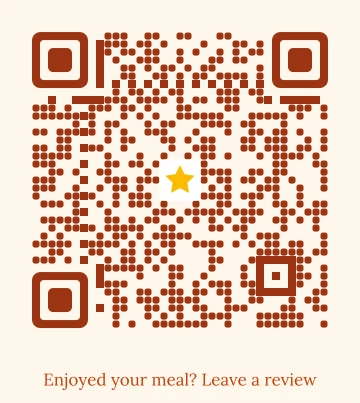
    Terracotta tones for restaurants and cafés

  • Beauty Rose Google review QR code template

    Beauty Rose

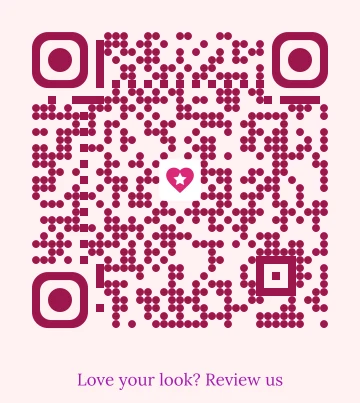
    Soft rose for salons and studios

  • Retail Navy Google review QR code template

    Retail Navy

    Confident navy for shops and services

Why trackable

Know which placement brings reviews

A normal QR code cannot tell you if anyone used it. A trackable code counts every scan. Free accounts track up to three codes, and paid plans track more.

01

Compare placements

Create one code per location, table or flyer and see which one gets scanned most.

02

Fix the link without reprinting

Moved to a new Business Profile? Update the review link and every printed code keeps working.

03

See when and where

Scans by day, country and device show when customers are most willing to review.

FAQ

Google review QR code questions

Is the Google review QR code generator free?

Yes. You can create and download a Google review QR code for free, without an account. A free account lets you track scans and edit the link later.

Where do I find my Google review link?

In your Google Business Profile, choose Ask for reviews and copy the link that starts with https://g.page/r/. You can also use your Place ID from the Google Place ID Finder.

Does it work on iPhone and Android?

Yes. Any phone camera that reads QR codes can open it, including the built-in camera on iPhone and Android. Customers do not need to install an app or sign in to scan the code.

How is this different from a regular QR code?

A regular QR code stores one fixed link. This code points to a short link you control, so you can change where it goes after printing, pause it, and see how many customers scanned it.

Can I see how many people scanned my review QR code?

Yes. Every scan is counted, with daily trends, countries and devices. Google does not share which reviews came from a scan, but scans show how often customers reached your review form.

Can I change the review link after printing?

Yes. Open the code in your dashboard and update the review link or Place ID. The printed QR code stays the same.

Can I offer a reward for reviews?

Google's policies do not allow offering incentives for reviews or asking only happy customers to review. Ask every customer and let them share their honest experience.

Get more Google reviews this week

Create your Google review QR code in a minute and put it where customers can see it.

Create a Google review QR codeFree, no account required.